Tailscale Quickstart Guide
How to install and use Tailscale on Windows and Mac.
Tailscale Quickstart Guide
Requirements
- Windows 10 or later, or Windows Server 2016 or later.
- macOS 12.0 (Monterey) or later.
Windows Install
- Download the latest Tailscale Windows installer (
.exe). - Run the installer. When it finishes, you’ll see the Tailscale icon in the system tray (check the overflow arrow if it’s hidden).
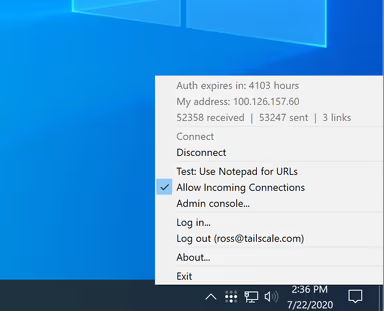
- Open the tray icon to view status and options.
- Sign in: choose Log in and authenticate with Microsoft.
Mac Install
- Download and install the Tailscale client using one of the following options:
- Standalone variant from Tailscale’s package server (Recommended).
- Mac App Store variant. The Tailscale client is free to download but downloading any app from the Mac App Store may require an Apple ID with a valid credit card attached.
- Open source variant from GitHub repo.
- Follow the Tailscale onboarding flow, which will guide you to install the Tailscale VPN configuration.
- Sign in with Microsoft.
Using Tailscale
Once installed, toggle Tailscale on and you will have access to all the machines and services within the tailnet or what your administrators allow.
Refer to them or other documentation as needed for your use case.
Using an Exit Node (U.S. VPN Mode)
An exit node allows your internet traffic to route through STRSI’s secure U.S.–based environment.
Use this when you need your IP address to appear as coming from the United States or specifically from our Azure east-us region.
When to Use This
- Access to systems requiring a U.S. IP
- Security‑sensitive work that must originate from STRSI’s network
- Traveling internationally and need U.S.-based connectivity
Enable the U.S. Exit Node (east-us)
- Click the Tailscale icon in your menu bar (Mac) or system tray (Windows).
- Ensure Tailscale is Connected.
- Select Exit Nodes.
- Choose east-us (recommended).
- Your internet traffic will now route through STRSI’s Azure environment.
Disable the Exit Node
- Open the Tailscale menu.
- Go to Exit Nodes.
- Select None to return to normal internet routing.
Troubleshooting
See Tailscale’s Windows troubleshooting guide for common issues and fixes. See Tailscale’s macOS troubleshooting guide for common issues and fixes.
This post is licensed under CC BY 4.0 by the author.